How to format your PhD or master's thesis using Microsoft Word
Professional-standard thesis formatting, without the frustration

Professional-standard thesis formatting, without the frustration
Formatting in word can be a nightmare, especially when you have a long document with figures, tables, references and equations.
When you're already stressed about writing and finishing your thesis, the last things you need are:
The fundamental problem is that, in Word, there are multiple different ways to achieve the same visual result and the document will behave differently depending on the steps you took previously. This is why it seems so inconsistent and infuriating.
The detailed video tutorials in this course will show you the exact steps you need to take to:
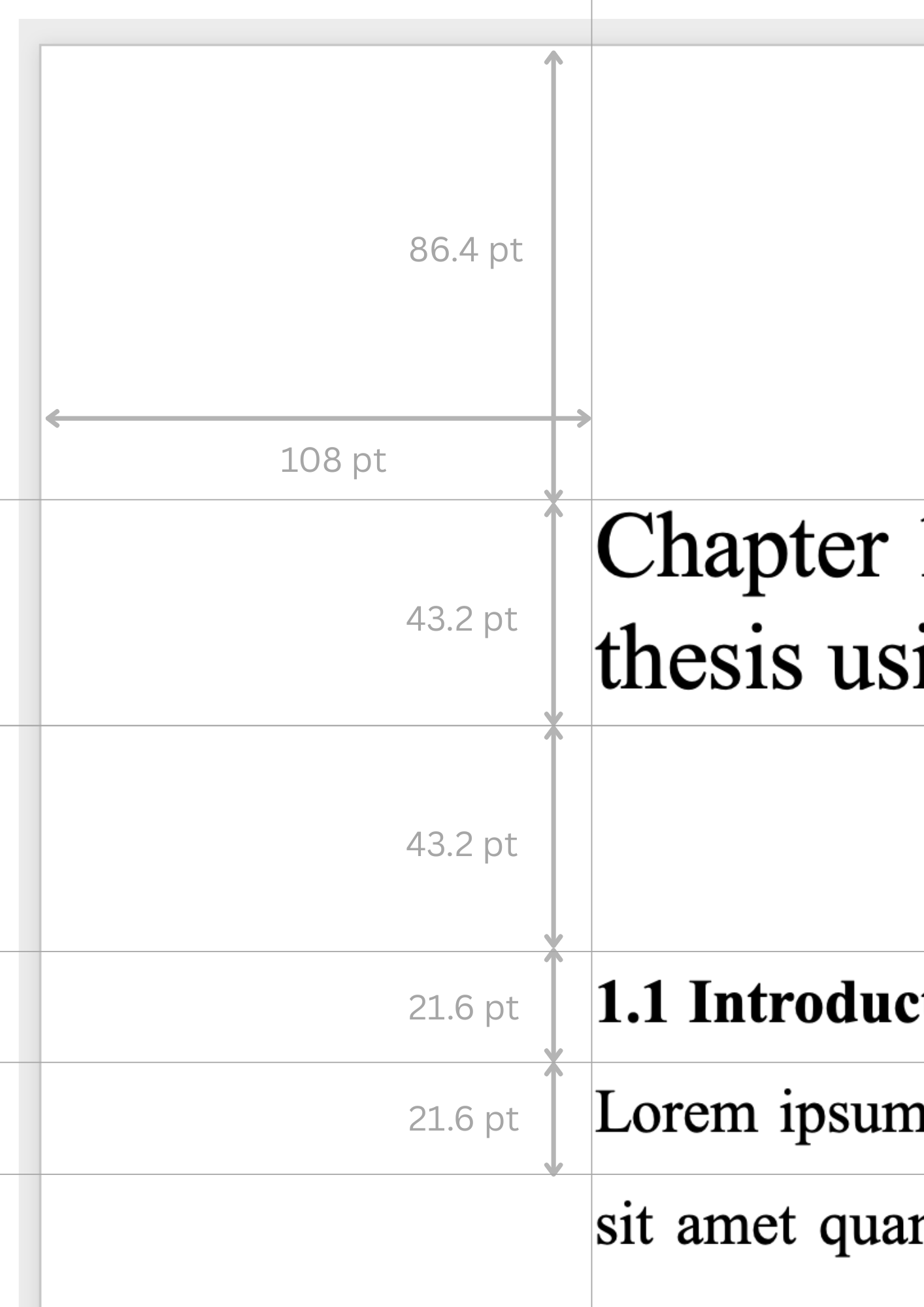
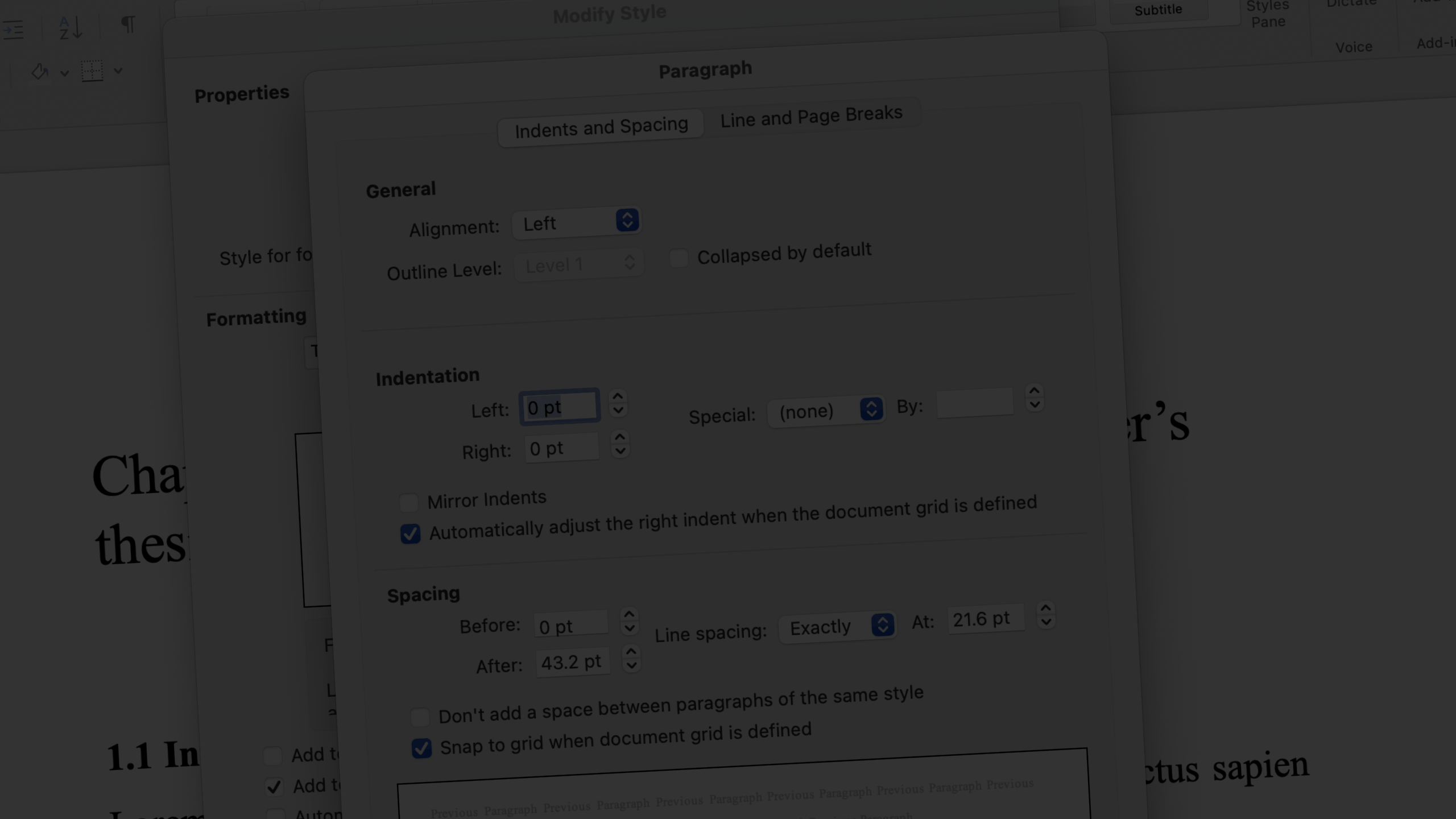
Good formatting is all about consistency and attention to detail. This course has been developed following the same principles and paying attention to the same details as professional typographers (for example, using exact multiples of the line spacing to set other dimensions on the page)
Every step of the course has been tested multiple times (on Windows and Mac) and revised over several years to make sure they work reliably.
I've been through the pain of finding and working around the bugs, so you don't have to!
When your thesis first arrives on your examiner's desk, before they start reading they'll probably pick it up and flick through it.
If your thesis looks clean and consistent, this will likely create a good first impression. It's a signal that you've put care into the work.
But if it's untidy or inconsistent, if the text size or line spacing suddenly changes, or if the figures go into the margins, it's going to look sloppy and unfinished. You don't want that to be their first impression of your work.
Formatting also affects readability, which is especially important for a long, technically demanding document.
While your research and writing should be the top priorities, you shouldn't leave all the formatting to the end, because;
In Word, there are multiple ways to achieve the same result and the document will behave differently depending on how it's been put together.
You could use a template, but if you don't know how the template has been constructed then it might misbehave in infuriating ways.
Yes! The course videos were mainly recorded on mac, but the course was originally developed on a Windows machine. Most steps and menus are exactly the same, but where there are differences these are shown in the videos.
I developed the first version of this course in 2016 (and used my own videos as a guide when re-recording and updating), so while I can't guarantee that everything will work perfectly on every version of Word, every step has been thoroughly tested on multiple versions on both windows and mac machines.
There may be differences in menu layouts or functionality if you are using a tablet or online version of Word.
I've made design choices taking into account common university requirements. As such, the design has quite a "traditional" look.
I've set it up so it will be easy to change, so if you don't like the font you can modify it quickly and easily.
In Word, there are multiple ways to achieve the same result and the document will behave differently depending on how it's been put together.
You could use a template, but if you don't know how the template has been constructed then it might misbehave in infuriating ways.
It's better to take the time to set up the document yourself so you understand how it works and can make changes if you need to.
I've tested these and found Zotero to be the most reliable and least likely to crash your document.
You can follow the same steps as shown in the course to test alternative reference management systems if you prefer to use them.
Yes!
A good journal should take care of the formatting for you. They will have submission guidelines on their website telling you how to submit your text and figures
While this course gives you the exact steps, you need to take care in following them to ensure consistent results. This is more difficult when you're under pressure.
It's also easier to set up a well formatted document at the start than to fix a document with messy formatting.
No, sorry!
I can't offer guaranteed tech support for Word or Zotero, but if you face problems or have questions during the course you can leave a comment on any of the videos and I'll do my best to help.
In most cases, if Word does something expected, it's best to use the undo function and start again, following the steps slowly and carefully.
We'd love to hear from you! Please contact us using this form for any questions or comments.